You have returned to the top of the page and may restart browsing.
Skip Main Navigation
You have skipped the global top navigation and may now begin browsing the page.

Registration Instructions

Quick Registration Steps
There are 3 ways to register for classes -- from a plan, by CRN, or by search.  
You can use either option or a combination of the options as you build your schedule.


To better prepare for Registration, users can build a potential schedule or class combination before their scheduled registration time.  The "My Favorites" section is now called "Plan" in the new update. For help creating a plan, please see the linked documentation: Creating a Plan for Registration.

Faculty and Advisors may use the following linked documentation for help creating a plan for a student: Creating a Plan for Registration for Faculty and Advisors

For video help with the updated screens, please see the recorded Zoom meeting for PAWS - Registration Update.


To Register from a Plan:

  • Login to your PAWS account
  • Select "Student Services and Financial Aid"
  • Select "Register/Drop Classes"
  • Select "Register for Classes"
  • Choose the Registration Term from the drop down menu
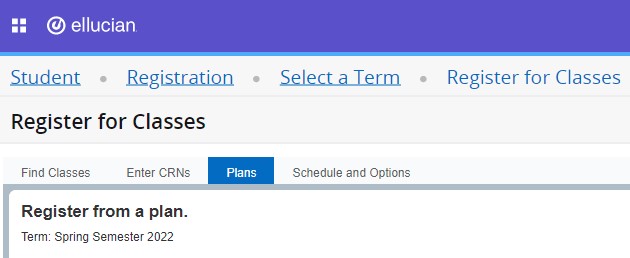
  • Select the "Plans" tab
  • Identify your plan and select  "Add All"
  • Select "Submit" in the Summary box
For help registering from a plan, please see
the linked documentation:
Registering for Classes from a Plan
Register from a Plan


To Register by CRN:

  • Login to your PAWS account
  • Select "Student Services and Financial Aid"
  • Select "Register/Drop Classes"
  • Select "Register for Classes"
  • Enter SSO credentials (if required)
  • Choose the Registration Term from the drop down menu
  • Select "Continue"
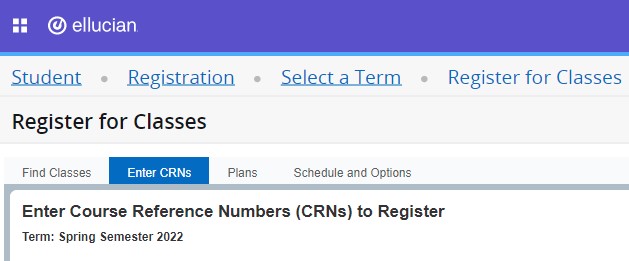
  • Select the "Enter CRNs" tab
  • Enter CRNs for all courses & labs/discussions
  • Select "add to summary"
  • Select "Submit" in the Summary box
Enter CRNs


To Register by Search:

  • Login to your PAWS account
  • Select "Student Services and Financial Aid"
  • Select "Register/Drop Classes"
  • Select "Register for Classes"
  • Enter SSO credentials (if required)
  • Choose the Registration Term from the drop down menu
  • Select "Continue"
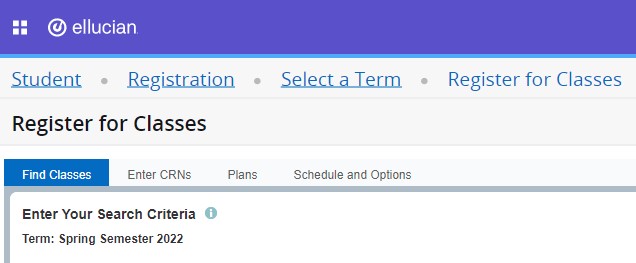
  • Select the "Find Classes" tab
  • Enter the search criteria
  • Select "Search"
  • Choose the section by selecting "Add to Summary"
  • Select "Submit" in the Summary box 
     
Search by Classes


The following are the directions to drop or audit classes:


To Drop/Audit:

  • Login to your PAWS account
  • Select "Student Services and Financial Aid"
  • Select "Register/Drop Classes"
  • Select "Register for Classes"
  • Enter SSO credentials (if required)
  • Choose the Registration Term from the drop down menu
  • Select "Continue"
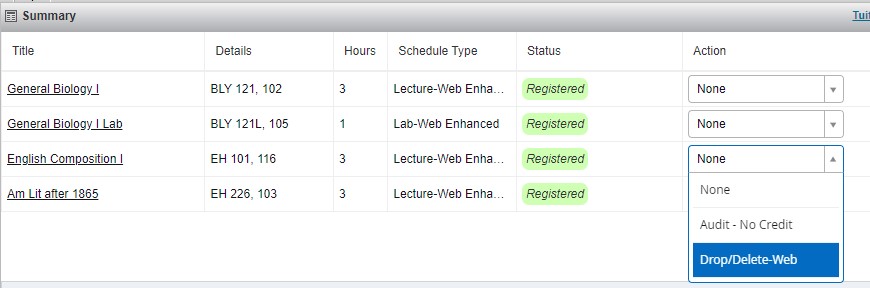
  • Navigate to Summary
  • Select Action for Audit-no credit or Drop/Delete-web
  • Select "Submit" in the Summary box 
Drop/Delete

For more details regarding the course drop process, please see the linked documentation:
Course Drop Workflow

revised 09/10/2025